What is Java Auto Update? How do I change notify settings?
This article applies to:
- Platform(s): Windows 10, Windows 8, Windows 7, Windows Vista, Windows XP
- Java version(s): 8.0, 7.0
 Mac OS X users: See How to update Java for Mac for more information.
What is Java Auto Update? How does automatic update work?
Java Update is a feature that keeps your Windows computer up-to-date with the latest Java releases. When you have auto update enabled, your system periodically checks for new versions of Java. When a new version is found we ask your permission to upgrade your Java installation. You can schedule how often to check for updates or check manually at any time.
How do I change how often I am notified about new Java versions?
Change the update schedule through the Advanced settings of the Update tab.
Typically, you will be notified of the update within a week of its release.
Why shouldn't I disable the notifications?
By enabling your system to check for the latest version, you keep your system secure with the latest patch updates. We strongly recommend that you do not disable the update feature. Instead, change preferences for how often you'd like to be notified of newer versions. The default setting is to notify on a weekly basis.
How do I configure my system to automatically download newer Java versions?
Use the Notify Me option under the Update tab of the Java Control Panel.
How do I install the update?
When you are notified of a newer version, click on the notification message to start the update process.
Why should I give permission to run the Java Auto Updater program?
The Java Auto Updater program (known as jucheck.exe in earlier Java versions) runs as a Windows process that checks and performs updates described in this FAQ. It
- is installed as part of the Java installation
- does not automatically install Java. It will present you with the option to install the latest Java version
Until the update is completed, this process will remind you that a newer secure version is available for your system. You should leave this process running in order to ensure getting the latest secure Java version.
Why am I notified each time I restart my computer?
Starting with Windows Vista and later versions, when you restart your system, the Windows process jucheck.exe (also known as Java Auto Updater), is initiated and attempts to check for the latest Java version. The Windows User Account Control (UAC) prompts you to allow this process to run.
Why can't I change the Update settings?
The ability to make changes to the Update tab may not be enabled if you are not logged in as administrator or if your network administrator has disabled that feature during installation.
Why is the Update tab missing from the Java Control Panel?
Java Auto Update is not available for 64-bit versions of Java prior to Java 8. For those versions prior to Java 8, the Update tab is not available in the Java Control Panel.
Starting with Java 8 Update 20, the Update tab in the Java Control Panel enables users to automatically update 64-bit JREs (in addition to 32-bit versions) that are installed on their system.
Why aren't my update settings saved?
See Java update settings are not saved in the Java control panel for more information and a workaround.
Does updating from Java 6 to Java 7 remove any previous versions?
Yes, updating to Java 7, using Auto Update or updating through the Java Control Panel, will remove the highest version of Java 6 installed. Java 6 has reached its End of Public Updates, which means there will be no further public secure updates for Java 6. It is recommended that Java 6 be removed from your computer to make it more secure.
Java Update Options
Change the Java update settings through the Java Control Panel.
Change Automatic Update Settings
- Find and launch the Java Control Panel
- Click the Update tab to access the settings.
- To enable Java Update to automatically check for updates, select the Check for Updates Automatically check box.
To disable Java Update, deselect the Check for Updates Automatically check box.
.jpg)
Change the Update Schedule
You can change the frequency for updates: daily, weekly, or monthly (default).
- On the Java Control panel Update tab, click Advanced
The Automatic Update Advanced Settings dialog appears. - Change the frequency and the date and time for the Java Update.
- Click OK. Java Update scheduler will check for newer Java updates and notify you at the scheduled frequency.
For daily updates, you can select the time of the day for the update. For weekly updates, you can select the day of the week and the time of the day. For monthly updates, you can select the day of the week and the time of the day. Monthly updates check weekly and notify you within 30 days that an update is available, however, if an update is considered critical you are notified within a week of its release.
Change the Notification Options
There are two notification options:
- Before installing Use this option to download automatically and be notified before installing the Java update.
- Before downloading This is the default option. Use this option to be notified before downloading and installing the Java update.
.jpg)
Manual Update Option
From the Java Control Panel Update tab, you can manually check for an update any time by clicking on the Update Now button located at the bottom of the Update tab on the Java Control Panel. Java Update can only be run if the system is connected to the internet. Alternatively, you can go Java.com to get the latest Java version.
After updating the Java version, you need to close and restart the Java Control Panel to get the updated Control Panel.
Install the New Update
- When a new Java update is available, a tooltip balloon appears on your Windows desktop. To install the new update, click on the notification dialog.
.jpg)
Windows Vista, Windows 7, Windows 8: User Account Control Depending on your Windows settings, the Windows User Account Control (UAC) consent prompt may appear, asking you to allow Java Auto Updater (or jucheck.exe) to perform the update check. The consent prompt appears when the system attempts to perform a task that requires administrative access. Click Yes to allow the update process to continue.
.jpg)
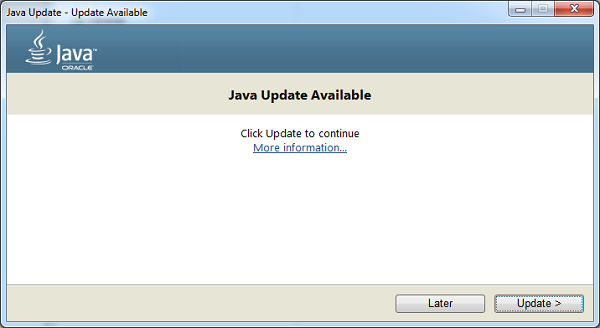
- The Update Available dialog appears. To start the installation, click Update. Otherwise, click Later to install the update at a later time.
- When the installation is complete, a dialog box appears. Click Finish to complete the installation.
 If you are not sure if an update notification for Java is authentic, we recommend that you go directly to java.com to upgrade to the latest version.